17 June 2016

Creating Matching and Duplicate Rules w/ Native Duplicate Management Features

I just updated the Matching and Duplicate Rules in our Salesforce org so I thought I'd post about how it was originally set up and the small changes I recently made.

We have a duplicate data issue.  Currently support reps think nothing of creating duplicate or incomplete contact and account records to fulfill their cases.  Case creation and tracking is just a tool to count activity.  It's not used to provide feedback to the product team for feature enhancement, nor the sales team for more intelligent onsite conversations with customers.    I'm looking to change this.

When I started here there was a little-used app called DupeCatcher.  I hadn't heard of it so, before uninstalling I wanted to check out the product.  Turns out a lot of the functionality (a lot of the functionality we used anyway) was in the native 'Duplicate Management' features of Salesforce.   So I decided to scrap DupeCatcher and build out the Salesforce settings instead.  If anyone using DupeCatcher wants to post about the product's enhancements, please do.

Here's a good summary of Duplicate Management 

First...  Create your Duplicate Rules.   Here are mine.


Only Account and Contact Dupe Rules are active.

For our Accounts in the US with Bank as the type we map them to their FDIC numbers.
So, I've created rules to not allow duplicate FDICs, CCIDs (unique fields from an external database) and, recently, Account Name.
We do have accounts with the same name however I think it'll do more good than bad to not allow creation of the same account name twice anymore.  More often than not the account created with the same name is a duplicate as opposed to another account with the same name.  Example; First Southern Bank.  There are definitely a few of these in the country but most of the bank with this issue are already in Salesforce.


One of the recent changes I made was to block any duplicate account creation.   You can choose to allow the rep to Save the new account and ignore the notification of the duplicate account.  I took away that option since there should be absolutely no duplicate FDIC numbers or CCIDs.


I'd suggest doing this in your org too if you haven't already.   Even as I post this I think to myself, of course I should've enabled this in the first place.

Next I'll see if the fuzzy logic on the Contact Name will suffice.


With these criteria users can try to create a contact named Rich Higgins on a specific account and Salesforce will block it if Richard Higgins exists.

If you have any suggestions on keeping data clean beyond these duplicate rules I'm all ears.


From the Salesforce help pages.

Create or Edit Duplicate Rules | Salesforce

Create or Edit Duplicate Rules


Use duplicate rules to define what happens when a user tries to save a duplicate record.
Available in: Salesforce Classic and Lightning Experience
Available in: Professional, Enterprise, Performance, Unlimited, and Developer Editions
User Permissions Needed
To create, edit, or delete duplicate rules:“Customize Application”
To activate and deactivate duplicate rules:“Customize Application”
To view duplicate rules:“View Setup and Configuration”
In order for users to see the list of possible duplicates detected by the duplicate rule, they must have read access to the object defined in the rule.
  1. From Setup, enter Duplicate Rules in the Quick Find box, then select Duplicate Rules.
  2. To edit an existing rule, click the rule name, then click Edit. To create a new rule, click New Rule , then select the object you want the rule to apply to.
  3. Enter the rule details, including the rule’s name, description, and record-level security settings.
  4. Select which action will occur when a user tries to save a duplicate record.
    If the action includes an alert to users, we’ll provide default alert text that you can customize. Only the Allow action includes the report option.
  5. In the Matching Rules section, first select the object that records will be compared with. Then select which matching rule will determine how records are identified as duplicates.
    The list includes all available matching rules for the selected object. If none of the matching rules in the list are what you want, select Create New Matching Rule.
    Tip
    We recommend you use the standard matching rules because they’ve been carefully designed to return the best possible set of match candidates. Just be sure you’ve activated them.
    If, however, you decide to create a new matching rule, we recommend you first finish creating your duplicate rule. Then create and activate the new matching rule. When you come back to the duplicate rule, it will automatically have the newly created matching rule associated it, as long as it didn’t already have an associated matching rule.
  6. Make sure you’ve selected the field mapping for each matching rule, if needed.
    If the matching rule is comparing records from two different objects or uses custom fields:
    • You’ll need to decide how you want the fields from the first object to be compared to the fields from the second object. For example, you might map a custom field called Work Email to the standard Email field.
    • Some data may be truncated prior to matching two text fields with different maximum lengths.
  7. If you want your duplicate rule to run only if specific conditions are met, specify the conditions.
    For example, you could add a condition that tells the rule to run only if the record was entered by a user with a certain profile or role, or if the record includes a specific country or state.
  8. Save the rule.
  9. Activate the rule.
    For the activation to succeed, all associated matching rules must be active.
  10. If you have more than one active duplicate rule for a particular object, you may want to adjust the order in which the rules are processed. You can reorder rules by clicking Reorder from any rule’s detail page.
    Tip
    If the first duplicate rule finds a match for a particular record, that record will not be evaluated by subsequent duplicate rules. Therefore, you should order your duplicate rule so that rules with the Block action are run before rules with the Allow action.


Create or Edit Custom Matching Rules


Use matching rules to determine how two records are compared and identified as duplicates.
Available in: Salesforce Classic and Lightning Experience
Available in: Professional, Enterprise, Performance, Unlimited, and Developer Editions
User Permissions Needed
To create, edit, or delete matching rules:“Customize Application”
To activate and deactivate matching rules:“Customize Application”
To view matching rules:“View Setup and Configuration”
  1. From Setup, enter Matching Rules in the Quick Find box, then select Matching Rules.
  2. If editing an existing matching rule, make sure the rule is inactive.
  3. Click New Rule or Edit next to the existing rule you want to edit.
  4. Select which object this matching rule will apply to.
  5. Enter a name and description for the rule.
  6. Enter the matching criteria.
    The matching criteria is where you define which fields to compare and how. To add additional fields (up to 10 total) click Add Filter Logic... and then Add Row.
  7. If you need to adjust the matching equation, click Add Filter Logic.... Here you can, for example, manually change an AND expression to an OR expression.
  8. Save the rule.
  9. Activate the rule.
    The activation process may take some time, so we’ll send you an email when the process is complete and your matching rule is ready to use.
After the matching rule is active, it’s available to use with other Data.com Duplicate Management tools. For example, using a matching rule with a duplicate rule tells Salesforce to take certain actions when users try to save a record the matching rule has identified as a duplicate.

15 June 2016

Auto Assign Team Members

** this blog has been moved to Sites

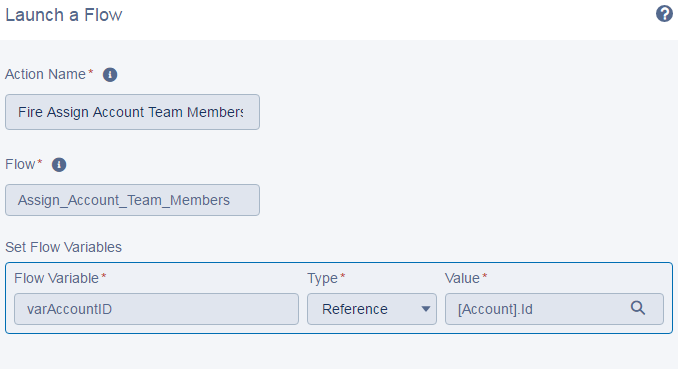
This Process and Flow combination automatically assigns team members based on the region of the account.  See my previous post regarding the region field population.  Formula for Regions

First, thank you to Derek Davis providing the structure of this flow.  I basically filled in the blanks.  The Flow...


We have mixed team members.  A RAM and an AE are assigned to each region regardless of the type of account it is. (ex. bank, accounting firm, law firm, ect...)
And a responder rep is assigned to the team IF the account is a Bank record type.  Responders are based on region as well.

So we lookup the account info...


And get the RecordType and Region from the lookup. 

Next we Fast Lookup the Account and identify the current team members. 


We want to different paths.   One path if there are team members on the account currently.  And another path if there are none.  So, Decision...


If the team member does exist we're going to delete them...


If they don't exist we're going to assign them based on the region.   So another decision to find the region.   This is the path after the team members are deleted too. 


Create the RAM member and AE member...


Then, if it's a bank, check the region and assign the responder reps.


If the team exists it's deleted and the team is re-added to the account.   This 'check' by Salesforce is ONLY done if the Region field IS CHANGED.   As shown in the process builder screen shots below. 


That's it.  No more having to run reports, check the team members are correct, export and correct a csv file and then upsert the correct teams.,


Process Builder and Visual Workflow data from the Salesforce help site.

Lightning Process Builder

Many of the tasks you normally assign, the emails you regularly send, and other record updates are vital parts of your organization's standard processes. Instead of doing this repetitive work manually, you can configure processes to do it automatically.
Available in: both Salesforce Classic and Lightning Experience
Available in: Professional, Enterprise, Performance, Unlimited, and Developer Editions
The Process Builder is a workflow tool that helps you easily automate your business processes by providing a powerful and user-friendly graphical representation of your process as you build it. The Process Builder’s simple and powerful design allows you to:
  • Create your processes using a convenient layout with point-and-click efficiency.
  • Create your whole process in one place rather than using multiple workflow rules.
  • Create processes by collaborating with different teams in your business.
  • Stop using Apex code to automate simple tasks.
Automated processes in the Process Builder are based on records and consist of:
  • Criteria that determine when to execute action groups.
  • Immediate and scheduled actions to execute when those criteria are met.
Any change that causes a record to match the criteria can automatically trigger the action group. A single process can also execute multiple action groups—so it’s easy to automate all of your business records, like accounts, in one place.
You can use the more powerful and flexible Process Builder to perform the same actions as workflow. With the Process Builder, you can:
  • Create a record
  • Update any related record—not just the record or its parent
  • Use a quick action to create a record, update a record, or log a call
  • Launch a flow—you can’t schedule this action with workflow
  • Send an email
  • Post to Chatter
  • Submit for approval
If you need your process to do more than what those actions allow, don’t worry. You can also call Apex or a flow from a process.


Visual Workflow

Visual Workflow lets you automate business processes by building flows and distributing them to the right users or systems. A flow is an application that can execute logic, interact with the Salesforce database, call Apex classes, and collect data from users. You can build flows by using the Cloud Flow Designer.
Available in: both Salesforce Classic and Lightning Experience
Available in: Enterprise, Performance, Unlimited, and Developer Editions
Flows can either require user interaction—perhaps a wizard or guided UI for data entry—or run in the background on their own—perhaps something that automatically transfers records when a user’s role changes.


Support team - Auto Case Closed

The Customer Support team is tired of hitting Save on a Case and then Closing it on the Case Closed page.
Creating a process to automatically mark a case closed when it's saved.

Overview of the Process:


Only when the Case is created


Just do it. 


Update the Status field to Closed


Now when a Case is Saved...


It's updated to Closed Status...


Auto Account Ownership based on geography

I've created rules to assign the account owner based on states and countries for our company.
In the back of my mind I've always thought maybe one of the Territory Management features out of the box would be sufficient.  But I could see the whole process in my head before any work was done so I just built it.

Step one.  Custom Fields to assign a Region and Region - Global to each account.  The rules are based on the existing definitions of each region our company already had in place.  Six Regions in the US.  Multiple Regions in Europe.  And a half dozen or so Global Regions that the sub Regions fit into.

region sub  region global
AsiaPac (CAP) Asia Pacific
Rest of Asia Asia Pacific
Antartica International
Latin America Latin America
North America North America
Rest of North America North America
Africa South Africa & Africa
CQS South Africa & Africa
Europe UK & Europe
UK & Nordic UK & Europe

AND

region segment
Canada North America
Central North America
Mid-Atlantic North America
Northeast North America
South Central North America
Southeast North America
West North America

To assign the region and region - global fields based on the state/country I created formulas on the fields themselves.  They actually fit just under the character limits for formula fields. 

Region: 

IF(
    OR(
        AND(
            ISBLANK(BillingState),
            BillingCountry = "United States"
        ),
        AND(
            ISBLANK(BillingState),
            ISBLANK(BillingCountry)
        )
    ),
    "None",


IF( 
BillingCountry = "Canada", 
"Canada", 

if( 
    contains("Algeria:Angola:Benin:Burundi:Cape Verde:Central African Republic:Chad:Comoros:Congo:Congo, the Democratic Republic of the:Cote d'Ivoire:Djibouti:Egypt:Equatorial Guinea:Gabon:Guinea:Madagascar:Mali:Mauritania:Mayotte:Morocco:Mozambique:Niger:Reunion:Sao Tome and Principe:Senegal:Sierra Leone:Somalia:Sudan:Tanzania, United Republic of:Togo:Tunisia:Libya:South Sudan", BillingCountry), 
    "Africa", 

IF( 
    CONTAINS("China:Australia:Malaysia:New Zealand:Singapore", BillingCountry), 
    "AsiaPac (CAP)", 

IF( 
    CONTAINS("Belgium:France:Germany:Italy:Luxembourg:Netherlands:Portugal:Spain:Switzerland:Aland Islands:Albania:Andorra:Austria:Belarus:Bosnia and Herzegovina:Bulgaria:Croatia:Czech Republic:Faroe Islands:Gibraltar:Greece:Guernsey:Holy See (Vatican City State):Hungary:Iceland:Liechtenstein:Malta:Moldova, Republic of:Monaco:Montenegro:Poland:Romania:Russian Federation:San Marino:Serbia:Slovakia:Slovenia:Turkey:Ukraine:Macedonia, the former Yugoslav Republic of:Saint Helena, Ascension and Tristan da Cunha:Cyprus", BillingCountry), 
"Europe", 

IF( 
contains("Falkland Islands (Malvinas):Argentina:Brazil:Chile:Colombia:Ecuador:French Guiana:Guyana:Paraguay:Peru:Suriname:Uruguay:Bolivia, Plurinational State of:Venezuela, Bolivarian Republic of", BillingCountry), 
"Latin America", 

IF( 
contains("Virgin Islands, British:Anguilla:Antigua and Barbuda:Aruba:Bahamas:Barbados:Belize:Bermuda:Cayman Islands:Costa Rica:Cuba:Dominica:Dominican Republic:El Salvador:Greenland:Grenada:Guadeloupe:Guatemala:Haiti:Honduras:Guam:Jamaica:Martinique:Mexico:Montserrat:Nicaragua:Panama:Puerto Rico:Saint Kitts and Nevis:Saint Lucia:Saint Pierre and Miquelon:Saint Vincent and the Grenadines:Trinidad and Tobago:Turks and Caicos Islands:Bonaire, Sint Eustatius and Saba:Curaçao:Saint Martin (French part):Sint Maarten (Dutch part)", BillingCountry), 
"Rest of North America", 

IF( 
contains("Afghanistan:Armenia:Azerbaijan:Bahrain:Bangladesh:Bhutan:British Indian Ocean Territory:Brunei Darussalam:Cambodia:Christmas Island:Cocos (Keeling) Islands:Cook Islands:Fiji:French Polynesia:Georgia:India:Indonesia:Iran, Islamic Republic of:Iraq:Israel:Japan:Jordan:Kazakhstan:Kiribati:Korea, Democratic People's Republic of:Korea, Republic of:Kuwait:Kyrgyzstan:Lao People's Democratic Republic:Lebanon:Macao:Maldives:Mongolia:Myanmar:Nauru:Nepal:New Caledonia:Niue:Norfolk Island:Oman:Pakistan:Papua New Guinea:Philippines:Pitcairn:Qatar:Samoa:Saudi Arabia:Solomon Islands:Sri Lanka:Syrian Arab Republic:Taiwan:Tajikistan:Thailand:Timor-Leste:Tokelau:Micronesia:Tonga:Turkmenistan:Tuvalu:United Arab Emirates:Uzbekistan:Vanuatu:Yemen:Palestine:Viet Nam", BillingCountry), 
"Rest of Asia", 

IF( 
contains("Botswana:Cameroon:Eritrea:Ethiopia:Gambia:Ghana:Kenya:Lesotho:Liberia:Malawi:Mauritius:Namibia:Nigeria:Rwanda:Seychelles:South Africa:Swaziland:Uganda:Zambia:Zimbabwe", BillingCountry), 
"CQS", 

IF( 
contains("Estonia:Latvia:Lithuania:Jersey:Denmark:Finland:Norway:Sweden:Ireland:Isle of Man:United Kingdom", BillingCountry), 
"UK & Nordic", 

IF(
contains("DE:KY:MD:NC:OH:SC:VA:WV:DC",BillingState),
"Mid-Atlantic",

IF(
contains("AK:AZ:CA:CO:HI:ID:MT:NV:OR:UT:WA:WY",BillingState),
"West",

IF(
contains("CT:ME:MA:NH:NJ:NY:PA:RI:VT",BillingState),
"Northeast",

IF(
contains("AL:AR:FL:GA:LA:MS:TN:VI",BillingState),
"Southeast",

IF(
contains("IL:IN:IA:MI:MN:MO:NE:ND:SD:WI",BillingState),
"Central",

IF(
contains("KS:NM:OK:TX",BillingState),
"South Central",


"NONE"))))))))))))))))

AND   Region - Global

IF(
   ISBLANK(BillingCountry),
    "None",

IF(
contains("United States:Canada",BillingCountry),
"North America", 

if(
contains("Algeria:Angola:Benin:Burkina Faso:Burundi:Cape Verde:Central African Republic:Chad:Comoros:Congo:Congo, the Democratic Republic of the:Cote d'Ivoire:Djibouti:Egypt:Equatorial Guinea:Gabon:Guinea:Guinea-Bissau:Madagascar:Mali:Mauritania:Mayotte:Morocco:Mozambique:Niger:Reunion:Sao Tome and Principe:Senegal:Sierra Leone:Somalia:Sudan:Tanzania, United Republic of:Togo:Tunisia:Western Sahara:Libya:South Sudan", BillingCountry),
"South Africa & Africa",

IF(
CONTAINS("China:Australia:Malaysia:New Zealand:Singapore", BillingCountry),
"Asia Pacific",

IF(
CONTAINS("Belgium:France:Germany:Italy:Luxembourg:Netherlands:Portugal:Spain:Switzerland:Aland Islands:Albania:Andorra:Austria:Belarus:Bosnia and Herzegovina:Bulgaria:Croatia:Czech Republic:Faroe Islands:Gibraltar:Greece:Guernsey:Holy See (Vatican City State):Hungary:Iceland:Liechtenstein:Malta:Moldova, Republic of:Monaco:Montenegro:Poland:Romania:Russian Federation:San Marino:Serbia:Slovakia:Slovenia:Svalbard and Jan Mayen:Turkey:Ukraine:Macedonia, the former Yugoslav Republic of:Saint Helena, Ascension and Tristan da Cunha:Cyprus", BillingCountry),
"UK & Europe",

IF(
CONTAINS("Falkland Islands (Malvinas):Argentina:Brazil:Chile:Colombia:Ecuador:French Guiana:Guyana:Paraguay:Peru:Suriname:Uruguay:Bolivia, Plurinational State of:Venezuela, Bolivarian Republic of", BillingCountry),
"Latin America",

IF(
CONTAINS("Virgin Islands, British:Anguilla:Antigua and Barbuda:Aruba:Bahamas:Barbados:Belize:Bermuda:Cayman Islands:Costa Rica:Cuba:Dominica:Dominican Republic:El Salvador:Greenland:Grenada:Guadeloupe:Guatemala:Haiti:Honduras:Jamaica:Martinique:Mexico:Montserrat:Nicaragua:Panama:Puerto Rico:Saint Kitts and Nevis:Saint Lucia:Saint Pierre and Miquelon:Saint Vincent and the Grenadines:Trinidad and Tobago:Turks and Caicos Islands:Bonaire, Sint Eustatius and Saba:Curaçao:Saint Barthélemy:Saint Martin (French part):Sint Maarten (Dutch part)", BillingCountry),
"North America",

IF(
CONTAINS("Afghanistan:Armenia:Micronesia:Azerbaijan:Bahrain:Bangladesh:Bhutan:British Indian Ocean Territory:Brunei Darussalam:Cambodia:Christmas Island:Cocos (Keeling) Islands:Cook Islands:Fiji:French Polynesia:Georgia:Guam:India:Indonesia:Iran, Islamic Republic of:Iraq:Israel:Japan:Jordan:Kazakhstan:Kiribati:Korea, Democratic People's Republic of:Korea, Republic of:Kuwait:Kyrgyzstan:Lao People's Democratic Republic:Lebanon:Macao:Maldives:Mongolia:Myanmar:Nauru:Nepal:New Caledonia:Niue:Norfolk Island:Oman:Pakistan:Papua New Guinea:Philippines:Pitcairn:Qatar:Samoa:Saudi Arabia:Solomon Islands:Sri Lanka:Syrian Arab Republic:Taiwan:Tajikistan:Thailand:Timor-Leste:Tokelau:Tonga:Turkmenistan:Tuvalu:United Arab Emirates:Uzbekistan:Vanuatu:Wallis and Futuna:Yemen:Palestine:Viet Nam", BillingCountry),
"Asia Pacific",

IF(
CONTAINS("Botswana:Cameroon:Eritrea:Ethiopia:Gambia:Ghana:Kenya:Lesotho:Liberia:Malawi:Mauritius:Namibia:Nigeria:Rwanda:Seychelles:South Africa:Swaziland:Uganda:Zambia:Zimbabwe", BillingCountry), 
"South Africa & Africa",

IF(
Contains("Estonia:Latvia:Lithuania:Jersey:Denmark:Finland:Norway:Sweden:Ireland:Isle of Man:United Kingdom", BillingCountry),
"UK & Europe",

"NONE"))))))))))

DONE

Once these fields are set I can base ownership on the population of these fields. 

here's an example of some of the filters. 


At the top of the flow I have some exceptions to the rules which is nice because I can be in complete control of what accounts go to who. 

If anyone thinks I should be doing this a different way I'm open to suggestions.  I was just thinking I need to explore Territory Management again in the sandbox and see if it's easier. 

This works for now though. 


Setting up Service Console on Salesforce from scratch


This web log picks up roughly two weeks into this project.   I'm about to set up the pilot users for Service Cloud in our production environment.

I'll post as items come up or as I remember them.

I recently set up a permission set for the 2 users in the sandbox.  Originally I just gave the service console access to the entire profile these 2 users were a part of but now that I'm about to roll this out to production and only want 2 users to pilot I need to create a permission set.

Jen and Teri have permission to access the console.

I'll be exporting the audit trail from the sandbox and going step by step back through the process in production.  I'll note each step here.

Turn on Knowledge and Service Cloud user access on my profile.
Pretty much following the guide for setting this up. Salesforce Console Guide
Created custom app Customer Support Console  - pg. 13 of the guide
Added our Image.  Received it from MarketingChoose Navigation Tab Items


Pinned to left.  300 pixels

Added History and Macro Browser as Console Components


I've made Cases a subtab of Contact because the process of creating a case should be as such; 
Find the Contact and Account, then create the Case from the Contact record.  

Now rethinking this because Cases will be the primary object especially when email and web to case are implemented. 


I've whitelisted our website but not really sure we'll need that. 


The only Profile that this app is assigned to is the System Admin.  Jen and Teri will have access for now via the permission set
From Audit Trail in Sandbox...   
Live Agent enabled.
Went to production to enable this.  Setup. Live Agent Setttings. Enable Live Agent.     per #7. on pg 13 of the guide.

I see there's an option to have customized keyboard shortcuts.  Not sure we'll need them.   I'll review and let the team know about the option.  See if they like it.

Changed profile Customer Service: Opportunity object permissions were changed from No Access to Read
Changed profile Customer Service: Push Topic object permissions were changed from No Access to Read
This is so the customer service reps can use the Live Agent feature when it's rolled out. 

Turned on Interaction Logs.  pg 20 of the guide.   Did not set it up beyond turning it on.

Created permission set for 'service console user'.  Added Jen and Teri.  6/10/2016 LH Added all of the support reps to this profile except Nikita in Inida.
Gave 'Service Cloud User' access to Jen and Teri via their individual user pages   6/10/2016  LH  Added all support reps minus one

Creating a new Contact Page for customer support.  One that has a Case creation option with field in the Feed section.  For fast creating cases.
     deleted my 'act-on' contact page layout

Turned on 'enable Case feed action and Feed Items' from the Support Settings on the CAse object in sandbox.

Limited the number of tabs that can be open at a time to 5.   then removed this because of feedback

Built training material for the support team to know how to create cases now.

Provided training and console walk-though to the reps.  Sent the deck.

Made first name required field.

Created Validation Account workflow to create an account and then a contact.  Email is required here.

6/10/2016  Turned on the console for the support reps.  removed old customer support app from view.  gave access to the console app and added Chatter tab


More info from the Salesforce help site. 


Set Up a Salesforce Console for Service


Create and customize a console app, then assign the Service Cloud User feature license to users.
Salesforce console available in Salesforce Classic and App Launcher in Lightning Experience. Setup for Salesforce console available in Salesforce Classic.
Available in: Professional, Enterprise, Performance, Unlimited, and Developer Editions

User Permissions Needed
To set up a Salesforce console for Service:“Customize Application”
AND
“Service Cloud User”
Important
If you plan to add Live Agent to a console, set it up completely before you set up your console.
  1. Customize highlight panels for all objects and turn them on.
  2. Create a console app and assign it to user profiles.
  3. Optionally, for support agents:
  4. Assign users the Service Cloud User feature license.
Tip
To add third-party integrations, or expand console customizations to new levels, advanced Salesforce admins and developers can create console components, or use code with an API named the Salesforce Console Integration Toolkit.


Create Queues


Create queues to prioritize, distribute, and assign records to teams who share workloads. There’s no limit to the number of queues you can create, and you can choose when queue members receive email notifications.
Available in: both Salesforce Classic and Lightning Experience
Available in: Contact Manager, Group, Professional, Enterprise, Performance, Unlimited, Developer, and Database.com Editions
Service contract queues available in: Professional, Enterprise, Performance, Unlimited, and Developer Editions with the Service Cloud
Lead queues and case queues are not available in Database.com
User Permissions Needed
To create or change queues:“Customize Application”
AND
“Manage Public List Views”
To change queues created by other users:“Customize Application”
AND
“Manage Public List Views” and “Manage Users”
  1. From Setup, enter Queues in the Quick Find box, then select Queues.
  2. Click New.
  3. Type a label and name. The label appears in the user interface as a list view, and the name is used by the API and managed packages.
  4. Choose email notification settings for the queue.
    To notifyYou must
    One email address when new records are added to the queue.Add an email address to Queue Email. You can add an email address for an individual or an email distribution list.
    All queue members individually when new records are added to the queue.Leave Queue Email blank.
    All queue members and the Queue Email individually when new records are added to the queue.Add an email address to Queue Email and select Send Email to Members.
  5. If your org uses divisions, select the queue’s default division. Cases inherit the division of the contact they’re related to, but when a case doesn’t have a contact, it’s assigned to the default global division.
  6. Add the objects available to the queue. You can add cases, leads, orders, custom objects, service contracts, or knowledge article versions.
  7. Add queue members. You can add individuals, roles, public groups, territories, connections, or partner users.
    . Depending on your org’s sharing settings, only queue members and users above them in the role hierarchy can take ownership of records in the queue.
  8. Click Save.
Tip
After you create a queue for cases or leads, you can set up assignment rules to route cases or leads to it.
Note
Before you can delete a queue, reassign its records to another owner and remove it from any assignment rules.